


Google Business Profile Optimization
If you run a local service business today where everyone is Googling the “closest X near me”, you’ve probably been told you need to “claim your Google listing.” But what does that even mean, and why should you care?
Let me tell you a quick story. Last year, a mutual friend of mine opened a small bakery in downtown Chicago. They make amazing croissants, but they had almost no customers for the first 3 months. The problem? When people searched for “bakery near me” on Google, their shop didn’t show up. Everything changed when they set up and optimized their Google Business Profile (formerly Google My Business). Within a month, foot traffic doubled, and they started getting regular online orders.
You May Also Like

That’s the power of a well optimized Google Business Profile. It’s not just another online directory listing – it’s often the first impression potential customers have of your business. In this guide, I’ll walk you through everything you need to know to create, optimize, and maintain a Google Business Profile that drives results for your local business.
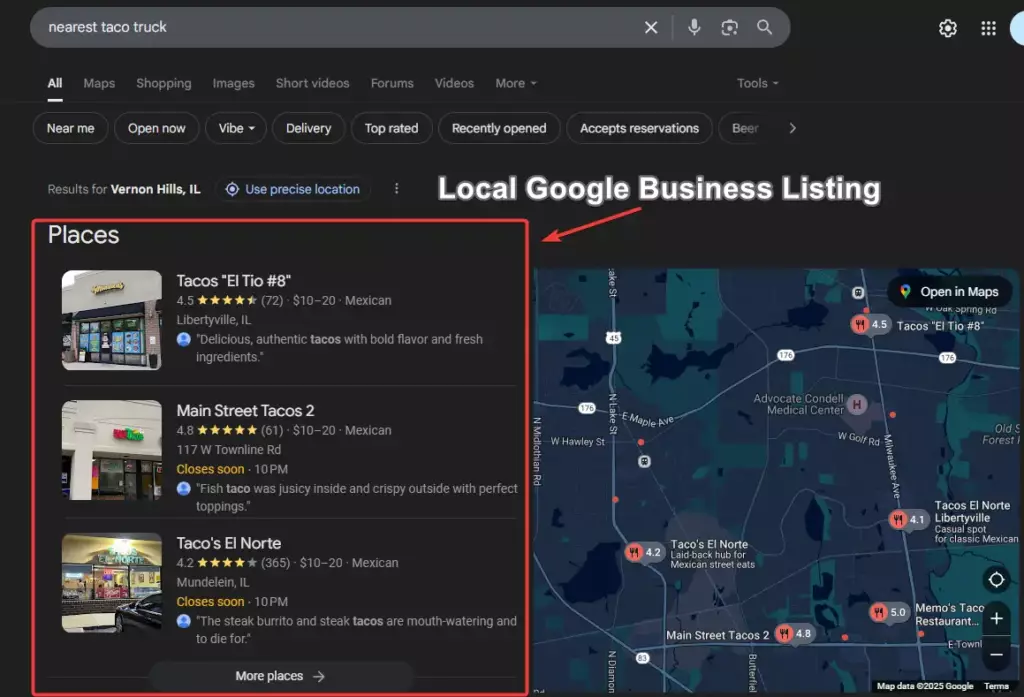
How do I create and verify and create my Google Business Profile?
Creating your Google Business Profile seems scary at first, but it is pretty easy once you know the steps. First, you’ll need a Google account; any Gmail address will do. If you don’t have one, take 5 minutes to create one just for your business. Trust me, keeping your business and personal accounts separate will save you headaches down the road.
To get started, go to business.google.com and click “Manage now.” Google will walk you through a series of questions about your business. Here’s where many people make their first mistake: they rush through this process. Take your time and be thorough. Every piece of information you provide here helps Google understand what your business is about and who should see it in search results.
When you enter your business name, use your actual business name as it appears on your storefront or official documents. I’ve seen businesses try to stuff keywords into their name field like “Joe’s Pizza – Best Pizza in Chicago – Free Delivery.” Don’t do this. Not only does it look unprofessional, but Google can penalize your listing for it.
The verification process for your business listing
Once you’ve entered all your basic info, Google needs to verify you’re the actual business owner. This is where things get fun. Google has several verification methods, but the most common is still the old-school postcard. Yes, in this digital age, Google will mail you a physical postcard with a verification code.
The postcard usually arrives within 5-14 days, but I’ve seen it take up to 3 weeks in some cases. While you’re waiting, don’t make any changes to your business name or address in your listing. Any changes will reset the verification process, and you’ll have to start all over again.
For some businesses, Google offers instant verification options:
- Phone verification
- Email verification
- Video verification
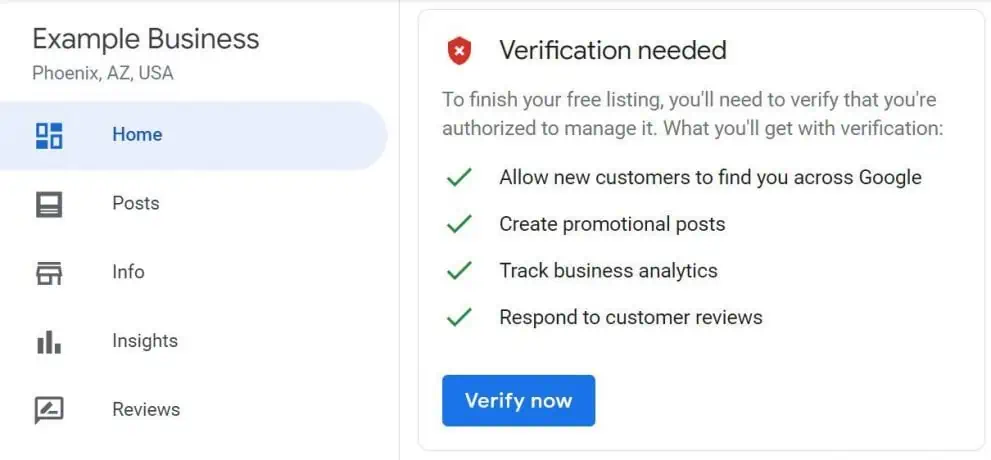
If you see these options, consider yourself lucky; they’re much faster than waiting for a postcard. Video verification, which became more common during the pandemic, involves showing a Google representative around your business via video call.
Common verification hiccups
- The postcard never arrives. This is the most common issue. If it’s been more than 14 days, request a new postcard through your Google Business Profile dashboard. First, confirm your mailing address is correct and that someone at your location is checking the mail.
- Your business runs from a home or virtual office. Google restricts which businesses can display an address publicly. If you’re a service area business, plumber, consultant, or anyone who travels to customers, hide your address and define your service areas instead.
- Your business is already listed. Google sometimes creates listings automatically from other data sources. If yours already exists, claim it rather than creating a new one. This gets trickier if someone else has claimed it first, but Google provides tools to verify ownership and resolve the conflict.
What essential information should I include in my Google Business Profile listing?
Optimizing your name, address, and phone number (NAP)
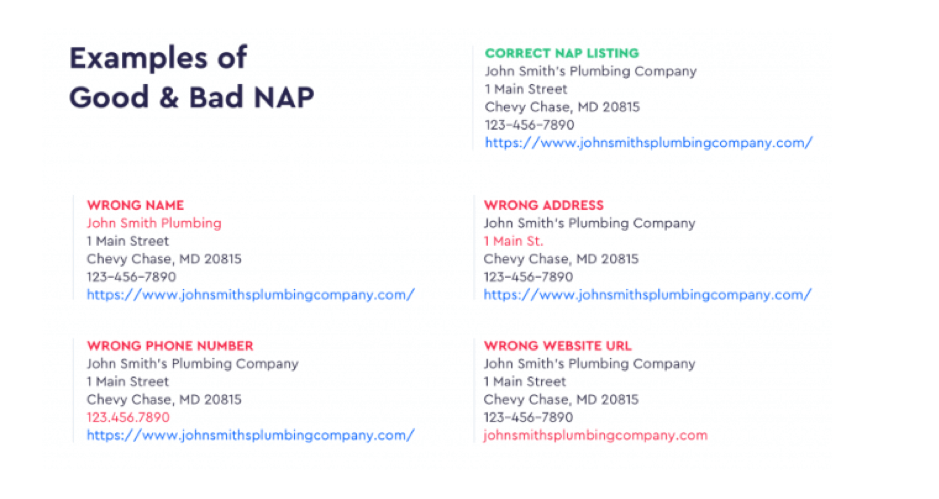
Your NAP is the foundation of your Google Business Profile, and consistency is everything. Your business name, address, and phone number on Google should match exactly how they appear on your website, social profiles, and other directories.
Keep the details identical. If you’re registered as “Johnson & Associates LLC,” don’t shorten it to “Johnson & Assoc.” If your address is “123 Main Street, Suite 200,” don’t abbreviate it to “123 Main St, Ste 200.” Small inconsistencies confuse both Google’s algorithms and potential customers.
Use a local phone number. A familiar area code signals you’re a local business, and customers trust that. I worked with a dentist who used a toll-free number as his main contact, and after switching to a local number matching his area code, his calls jumped noticeably.
Choosing the right business categories for better ranking
Choosing the right categories for your business is like choosing the right keywords for your website – it directly impacts who finds you in search results. Google allows you to choose one main category and several sub categories. Your main category should be the most specific description of what your business does.
Here’s a real-life example: Let’s say you have a coffee shop that also sells pastries and does catering. In this case:
- Your main category should be “Coffee shop,” not “Restaurant” or “Caterer.”
- You can then add “Bakery” and “Caterer” as subcategories
The key is to be specific with your main category and use sub categories to capture other parts of your business.
I always recommend looking at what categories your successful competitors are using. If the top-ranking coffee shops in your area all use certain categories, there’s probably a good reason for it. However, don’t just copy blindly – make sure the categories accurately represent your business.
Writing an effective business description that converts
Your business description is your elevator pitch to customers. You have 750 characters to tell them what makes your business special and every word counts. The biggest mistake I see is businesses writing descriptions that sound like they were written by a robot or copied from a corporate handbook.
Instead of writing “We are a full service restaurant serving high quality food and great service” try something more like “Family owned since 1995, we serve authentic Italian recipes passed down through three generations. Handmade pasta and wood-fired pizzas have made us a neighborhood favorite. Lunch, dinner, or our famous Sunday brunch.”
Include information that helps customers make a decision:
- Do you have free parking?
- Are you wheelchair accessible?
- Do you have outdoor seating?
These details may seem small, but they can be the deciding factor between you and a competitor.
How can I optimize my Google My Business profile for local SEO?
Adding high-quality photos and videos to boost engagement
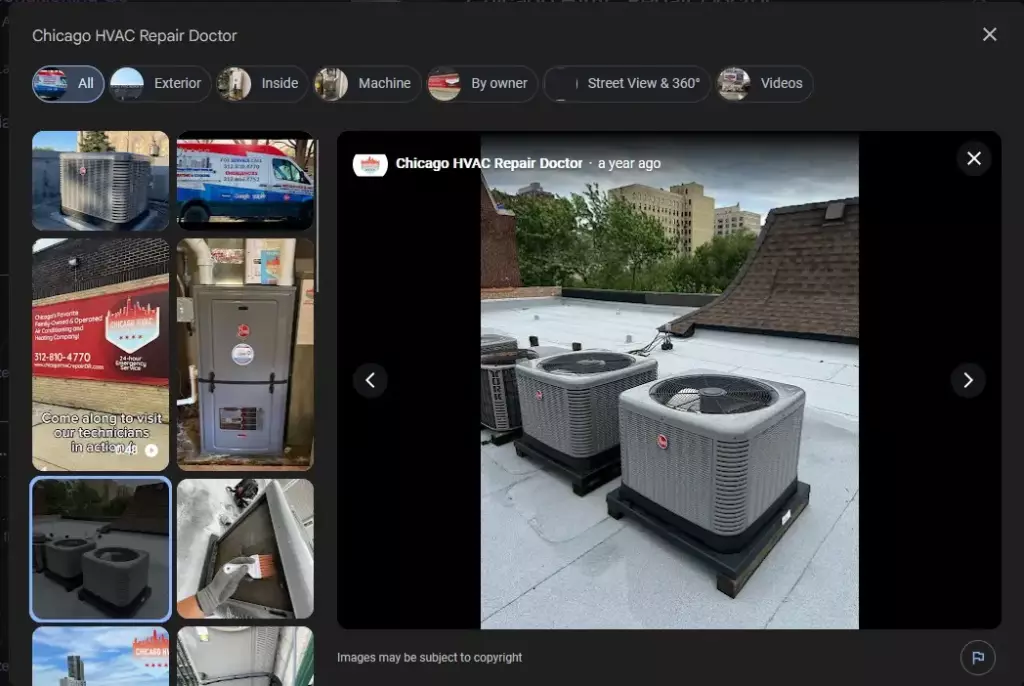
If a picture is worth a thousand words, then in the world of Google Business Profiles, it’s worth a thousand clicks. Businesses with photos get 42% more requests for directions and 35% more click-throughs to their website. But here’s the thing – not all photos are created equal.
Start with your cover photo, as that’s the first thing people see. This should be your best shot – maybe your storefront on a sunny day or your signature product beautifully presented. Then add photos of:
- Your interior
- Your team
- Your products or services in action
- Anything else that gives people a feel for what to expect
I learned this the hard way with a client who ran an upscale steakhouse. Their Google listing had only one dark, blurry photo of their sign. We did a professional photo shoot, capturing the elegant dining room, the chef preparing their signature ribeye, happy customers enjoying their meals, and close-ups of their most popular dishes. Within a month, their click-through rate had increased by 60%.
Utilizing business attributes to highlight your unique offerings
Business attributes are those little tags that show up on your listing – things like “Wheelchair accessible”, “Free Wi-Fi” or “LGBTQ+ friendly”. They may seem like small details, but they’re super powerful for attracting the right customers and visibility in specific searches.
Google has different attributes for different business categories. For example:
- A restaurant might have options like “Good for kids”, “Romantic”, or “Vegetarian options”
- A retail store might have “In-store pickup” or “Same-day delivery”
Take the time to go through all the attributes and select every single one that applies to your business.
Here’s something I found out: certain attributes can actually help you show up in more specific searches. For example, when someone searches for “restaurants with outdoor seating near me”, Google prioritizes businesses that have selected the “Outdoor seating” attribute. It’s like having extra keywords without keyword stuffing.
Setting up accurate business hours and special hours
Nothing frustrates customers more than showing up to a business that’s supposed to be open, only to find it closed. That’s why keeping your hours updated is crucial – and I mean really updated. This includes:
- Regular hours
- Holiday hours
- Any temporary changes
Google makes it easy to set special hours for holidays well in advance. I recommend setting these at the beginning of each year for all major holidays. Furthermore, you can also set temporary closures if you need to close unexpectedly. During the COVID-19 pandemic, businesses that kept their hours updated saw much higher customer satisfaction ratings than those that didn’t.
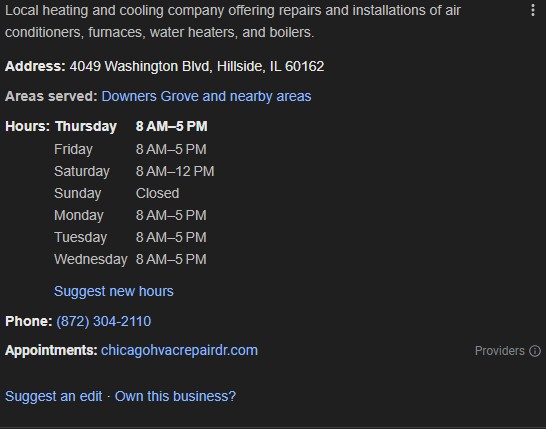
Pro tip: If your business has different hours for different services (like a restaurant with separate hours for dine-in and takeout), make sure to specify this in your business description or use the more specific hours feature if it’s available for your category.
What strategies can help me manage and respond to Google reviews?
How to respond to positive and negative reviews
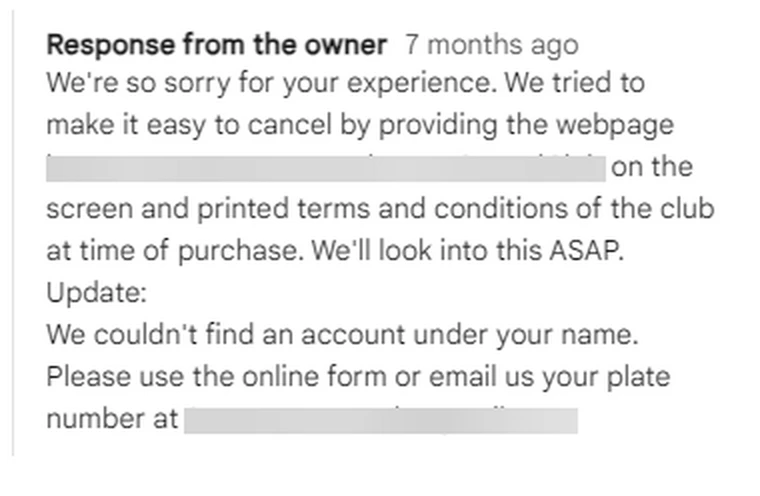
Reviews can make or break a local business, and how you respond to them is just as important as the reviews themselves. When I first started helping businesses with their online persona I noticed a pattern: businesses that responded to reviews, both positive and negative, built stronger relationships with their customers and got more repeat business.
For positive reviews, don’t just say “Thanks!” Take a moment to write a personal response. If someone mentions loving your chocolate croissants, thank them specifically for that. If they mention a staff member by name, pass along the compliment. These personal touches show you’re reading and valuing customer feedback.
Negative reviews are where things get tricky. Your first instinct might be to defend your business or explain why the customer is wrong. Don’t. Instead:
- Take a deep breath and respond professionally
- Acknowledge their concern
- Apologise for their experience (even if you don’t think you’re at fault)
- Offer to fix it
I always recommend taking detailed complaints offline by providing a direct contact method.
How to encourage customers to leave Google reviews
Getting reviews doesn’t happen by accident – you need a strategy. The easiest method I’ve found is to simply ask. Train your staff to mention reviews to happy customers. Something like, “I’m so glad you enjoyed your experience! If you have a moment, we’d really appreciate it if you could share your thoughts in a Google review.”
Make the process as easy as possible:
- Create a short link to your review page (Google provides this in your Business Profile dashboard)
- Include it on receipts, business cards, or follow-up emails
- Create QR codes that take customers directly to the review page – perfect for table tents in restaurants or checkout counters in retail stores
Timing is everything. The best time to ask for a review is right after a positive interaction. If you’re a service business, send a follow-up email within 24-48 hours of completing a job. If you’re a restaurant, consider adding a review request to your receipt or sending it in a thank-you email if you have their contact information.
Using review insights to improve your business
Reviews aren’t just about your online reputation – they’re a treasure trove of customer feedback to help you improve your business. I encourage all my clients to read their reviews regularly and look for patterns. Are multiple people mentioning slow service? Maybe it’s time to review your staffing. Are customers raving about a particular employee? Perhaps they deserve a shout-out or a promotion.
Create a simple spreadsheet to track common themes in your reviews. Categories might include:
- Service speed
- Product quality
- Cleanliness
- Staff friendliness
- Value for money
This will help inform your business decisions and nip problems in the bud.
How can I use Google My Business posts to promote my local business?
Google Business Profile posts are like social media posts that appear directly in your business listing. They’re surprisingly underutilized, which means they’re a great opportunity to stand out from your competition. Posts can:
- Announce special offers
- Showcase new products
- Promote events
- Simply share updates about your business
The secret to great posts is to make them visual and action oriented. Always include a high quality image or video – posts with images get way more engagement. Keep your text short and include a call to action. Instead of “We have a sale this weekend,” try “Save 25% on all summer clothing this Friday through Sunday. Shop in-store or online!”
I’ve found that posts about limited time offers or exclusive deals perform best. One pizza shop I worked with started posting weekly specials every Monday and, within the first month, saw a 30% increase in sales on Tuesday-Thursday (their slowest days).
Establishing a consistent posting schedule for better results
Consistency is key when it comes to Google posts. Most posts expire after seven days (event posts last until the event date), so you need to keep fresh content coming. I recommend posting at least once a week, but 2-3 times per week is even better if you can manage it.
Create a content calendar to plan your posts in advance. Mix up your content types:
- Monday is for showcasing a product
- Wednesday is for sharing a customer testimonial or business update
- Friday is for promoting weekend specials
This variety keeps your listing fresh and gives customers different reasons to engage with your business.
How well are your Google Business Profile posts performing?
Google gives you insights on how your posts are doing, and that’s super valuable. You can see how many views and clicks each post gets, so you can see what’s working with your audience.
Look at which types of posts get the most engagement. Maybe your audience loves behind the scenes content, or maybe they love discount offers. Use this info to create more of what works and less of what doesn’t. One of my restaurant clients found out that posts with their daily specials got 3x more clicks than generic promotional post,s so they adjusted their strategy accordingly.
What are the advanced features of Google Business Profile I should be using?
Messaging and appointment booking
Google’s messaging feature allows customers to text you directly from your listing. It’s like having a customer service chat function, but through text messaging. This is super helpful for businesses that get a lot of quick questions – “Do you have this in stock?” or “What time do you close today?”
To make messaging work, you need to commit to responding quickly. Google tracks your response time and response rate and shows those to potential customers. Here’s what you should do:
- Set up automated responses for common questions
- Have someone monitor messages during business hours
I’ve seen businesses increase their conversion rates just by being available to answer quick questions via messaging.
The appointment booking feature integrates with various scheduling software, so customers can book directly from your Google listing. This is especially helpful for service businesses like salons, medical offices, or consultants. The fewer steps between discovery and booking, the more likely customers are to follow through.
Google My Business insights
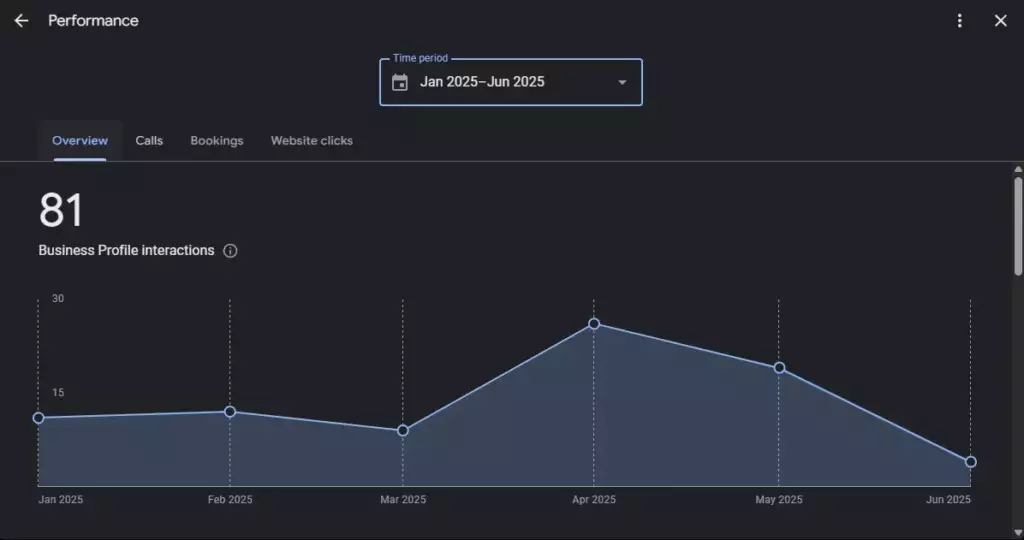
The Insights section of your Google Business Profile is a goldmine of data that many business owners ignore. You can see:
- How customers find your listing (direct searches vs. discovery searches)
- What actions they take (visit your website, call, ask for directions)
- Where they’re coming from
One metric I always tell clients to watch is the “discovery searches” – these are people who found you while searching for a category, product or service rather than your business name specifically. If this number is low, it usually means you need to work on your optimization. Maybe your categories aren’t quite right, or you need more relevant content in your posts and descriptions.
Connect your Google Analytics to your Business Profile
If you really want to know how your Google Business Profile is impacting your business, connect it to Google Analytics. This will let you see what happens after someone clicks through to your website from your listing. You can see which pages they visit, how long they stay, and whether they complete actions like making a purchase or filling out a contact form.
Setting this up requires adding UTM parameters to your website URL in your Google Business Profile. It’s a bit technical, but the insights are worth it. One e-commerce client found that visitors from their Google Business Profile had a 40% higher conversion rate than visitors from other sources, so they decided to invest more time in their listing.
How do I fix common Google My Business issues?
Duplicate or suspended listings
Duplicate listings are the most common and annoying Google Business Profile problems. They can happen when:
- Google creates listings from multiple data sources
- Multiple people in your organization create listings without realizing one already exists
These duplicates confuse customers and dilute your online presence.
To fix duplicates, first claim all versions of your listing. Then Google provides tools to merge duplicates or mark them as permanently closed. Make sure to consolidate all your reviews and photos onto one primary listing before removing the duplicates. This can take several weeks, but it’s worth doing right to avoid future problems.
Suspended listings are a whole different ball game. Google can suspend listings for:
- Keyword stuffing in the business name
- Listing a virtual office as a physical location
- Creating multiple listings for the same business
If your listing gets suspended, don’t panic. Review Google’s guidelines carefully, fix the violations, and submit a reinstatement request with a clear explanation of the changes you made.
Managing ownership conflicts and access issues
Ownership conflicts often arise when employees create listings using personal accounts and then leave the company, or when agencies manage listings on behalf of businesses. I once worked with a business that couldn’t access their listing because their former marketing manager had created it with their personal email and wouldn’t transfer ownership.
The solution is to always use a business email account to create and manage your listing, and to keep track of who has access. Google allows multiple users with different permission levels, so you can give employees or agencies access without giving them full ownership. If you do face an ownership conflict, Google has a process for proving you’re the rightful owner, though it can take time and requires documentation.
Reporting and fixing incorrect information on your listing
You’ll find incorrect information on your listing that you didn’t add – maybe wrong hours, an incorrect phone number, or categories you didn’t select. This happens because Google pulls information from all over the web, and sometimes that information conflicts with what you entered.
When this happens, you can suggest edits to fix the information, but Google might not accept your changes if they have conflicting data from sources they consider authoritative. The best approach is to make sure your business information is consistent across all major platforms:
- Your website
- Yelp
- Industry specific directories
Once Google sees consistent information everywhere, it’ll be more likely to accept your edits.
Remember, optimizing your Google Business Profile isn’t a one time task – it’s an ongoing process. The businesses that see the best results are the ones that actively manage their profiles, update their information regularly, engage with customers through reviews and posts, and continuously look for ways to improve. Whether you’re just starting out or looking to take your existing profile to the next level the strategies in this guide will help you build a strong local presence that drives real results for your business. The digital landscape is always changing, but one thing remains the same – customers are looking for businesses like yours on Google, and a well optimized Business Profile ensures they find you.
Ready to Make SEO Pay for Itself?
Stop paying for promises – start paying for performance. Our experts will revolutionize your search visibility with no upfront costs.